
See it running
See the app before you download it
These are real Orch screens with sample course data, so you can judge the flow for yourself.
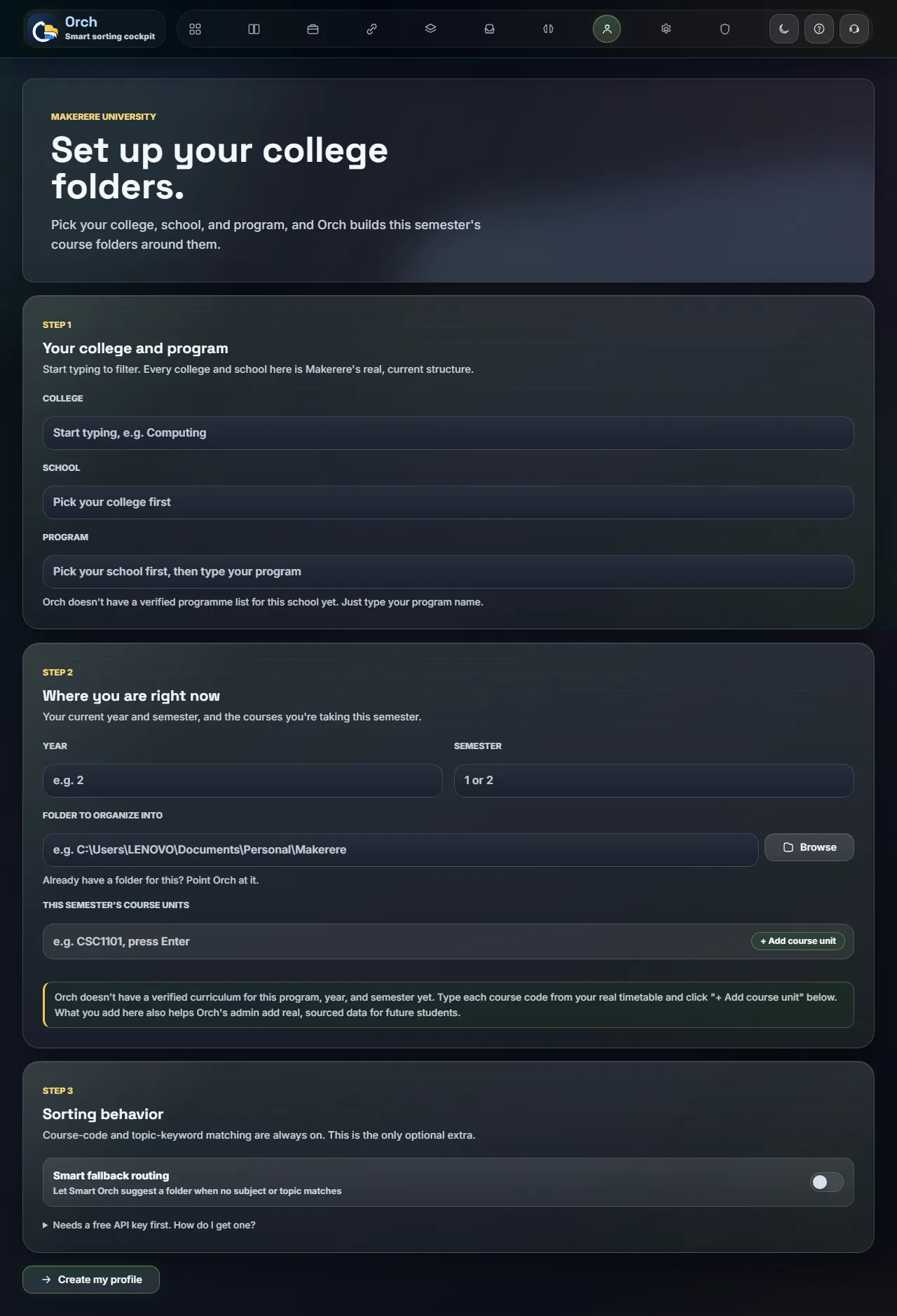
Choose Makerere University courses from the real college and school structure
- What you see: the guided setup for college, school, programme, and course units.
- When to use it: once, when you first set up a Makerere University profile.
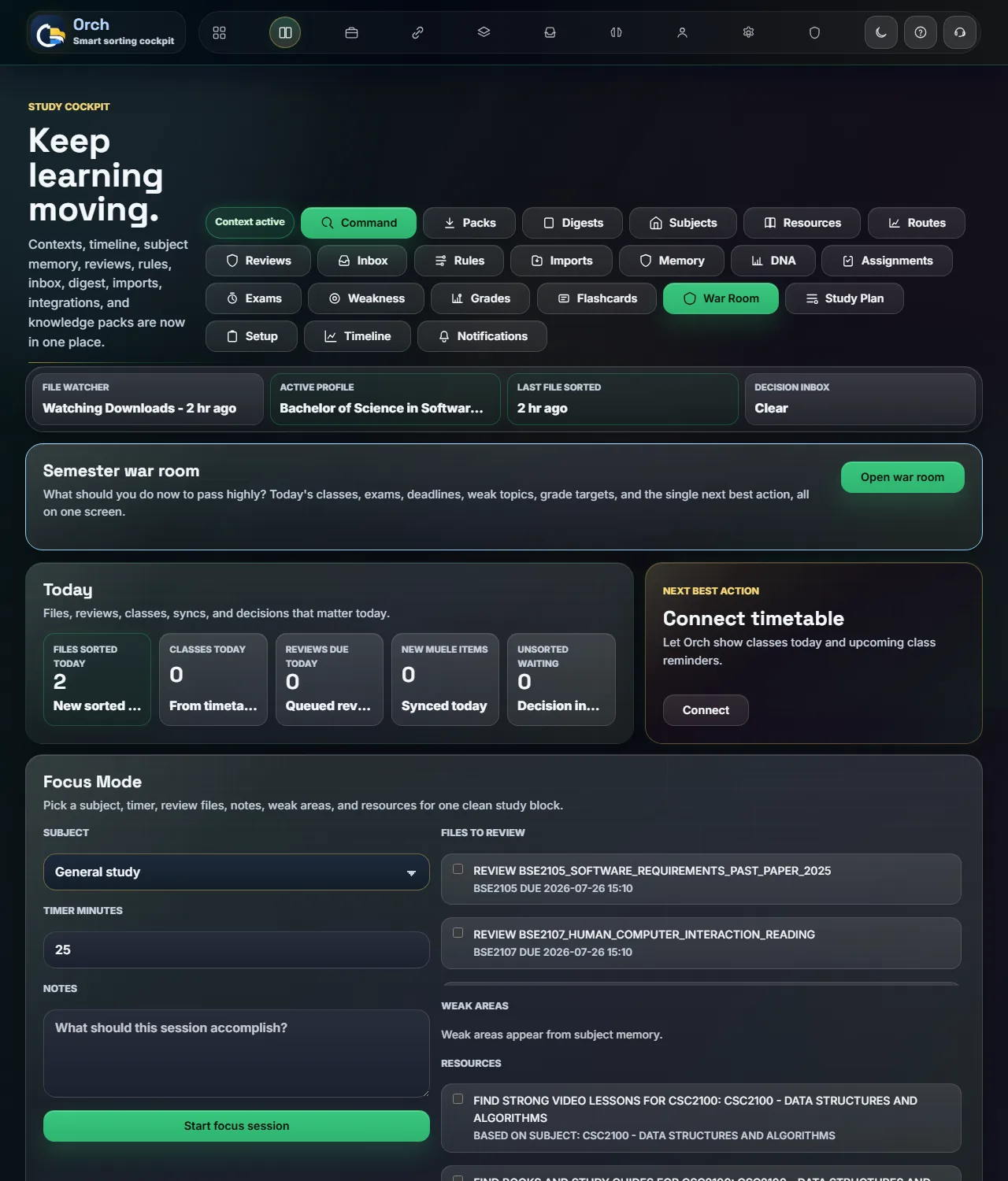
Focus sessions, deadlines, and revision in one place
- What you see: today's priorities, a focus timer, and a live activity feed.
- When to use it: at the start of a study session, to see what needs attention first.
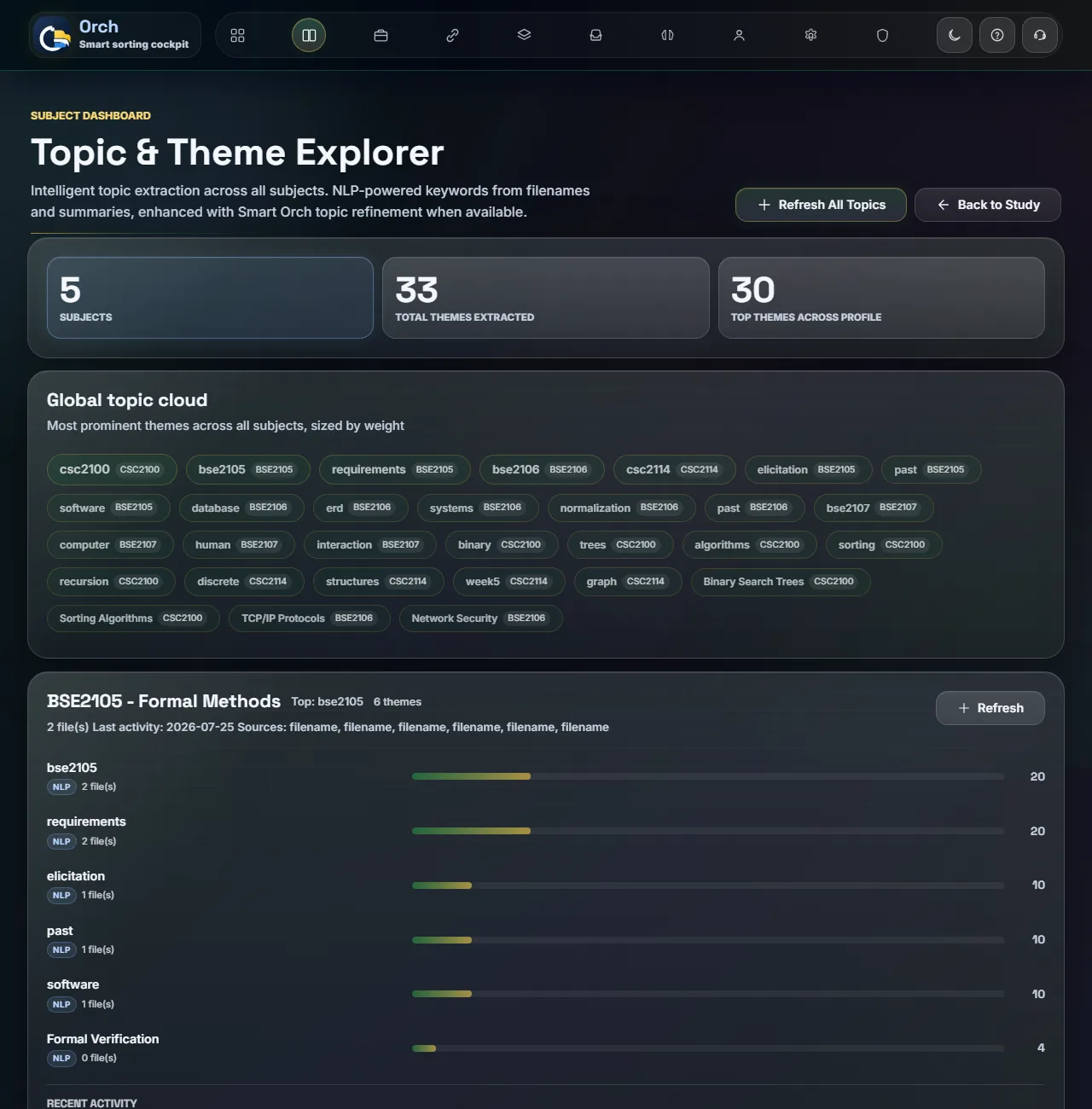
Topics pulled from your files so revision starts with context
- What you see: topics and themes pulled automatically from your sorted files.
- When to use it: before a test or exam, to see which topics keep coming up.
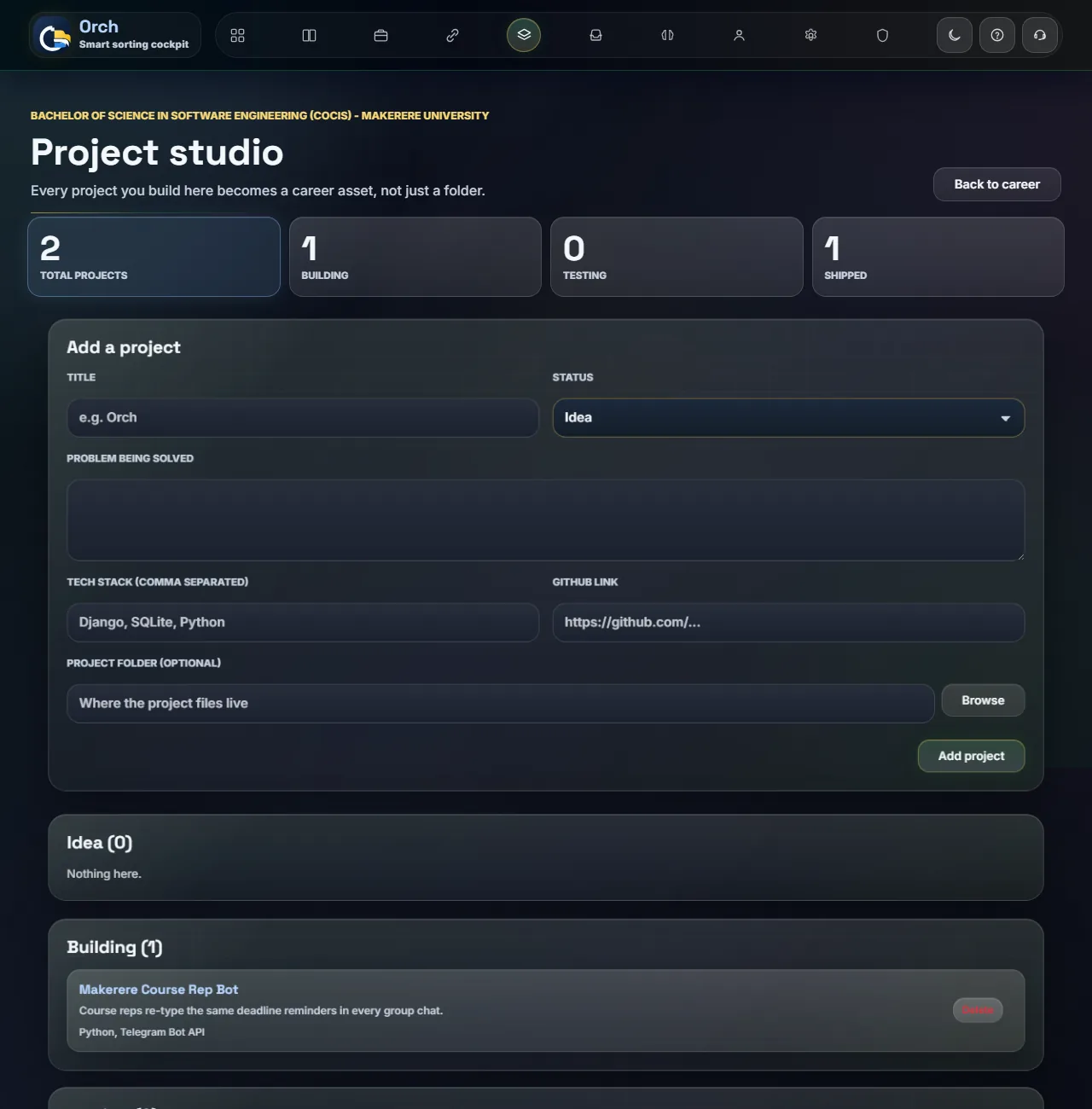
Project Studio keeps project notes and evidence together
- What you see: projects tracked by status, with tech stack, links, and notes.
- When to use it: while building a project, or when preparing it for a portfolio.
Like what you saw?
Get the real thing on your own files.
These screens are what a normal week looks like. Install Orch, point it at a folder you already trust, and undo anything that needs a second look.
- Open OrchAnswer a few questions about the work you want organized.
- Pick one folderStart with a semester, project, or course folder you already trust.
- Keep working as usualNew files get filed, logged, and easy to find again.
Windows 10 or 11
Simple installer
No account required